


Your model library
Choose CraftyWand products and combine them in one scene.
Bring products together in a scene. Choose from CraftyWand’s model library, explore ready-made scenes, and adjust the layout, lighting and camera in real time.
Start 3D modeling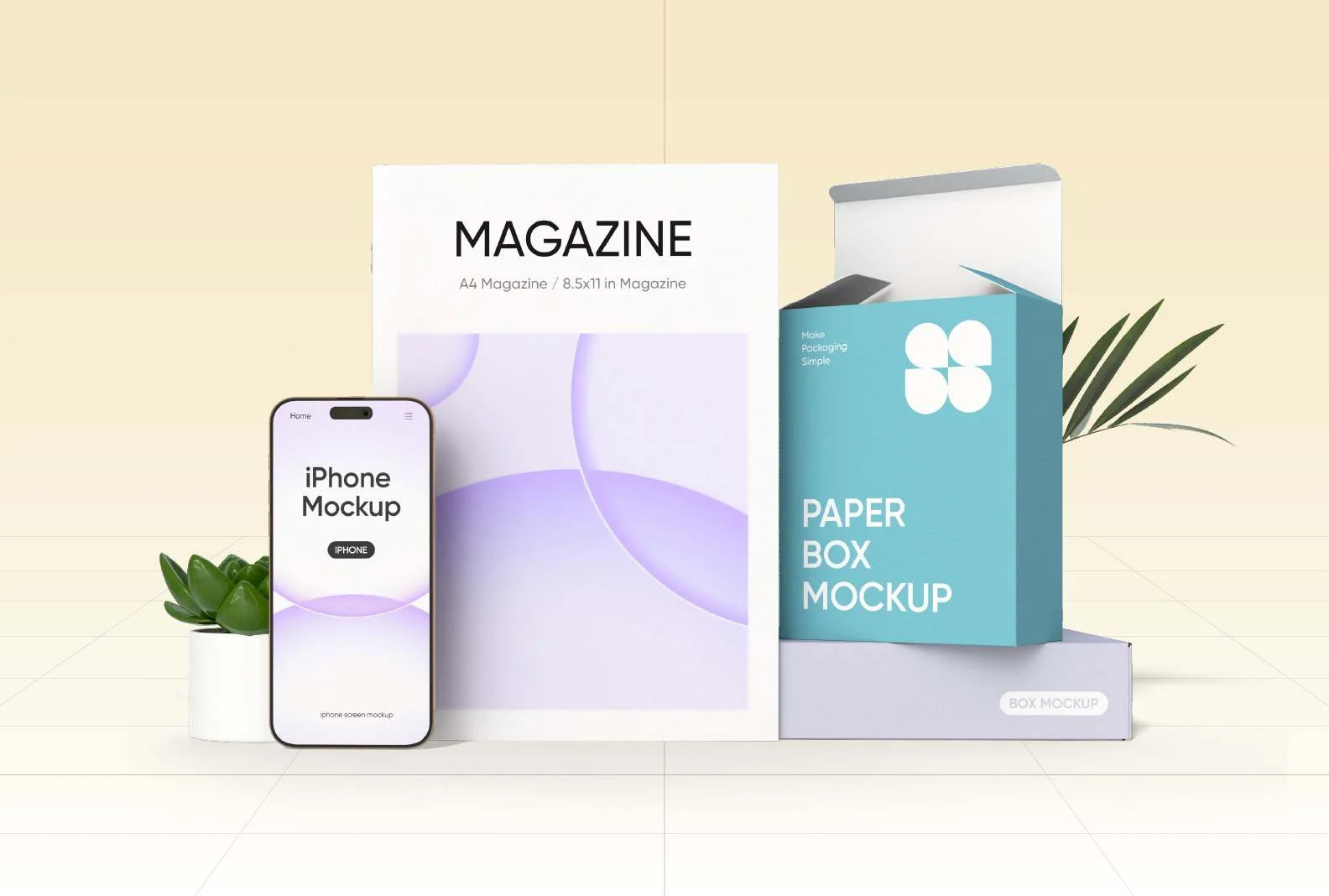
Explore 163 scene templates across six collections. Apply a setting to your selected product, then make it your own.
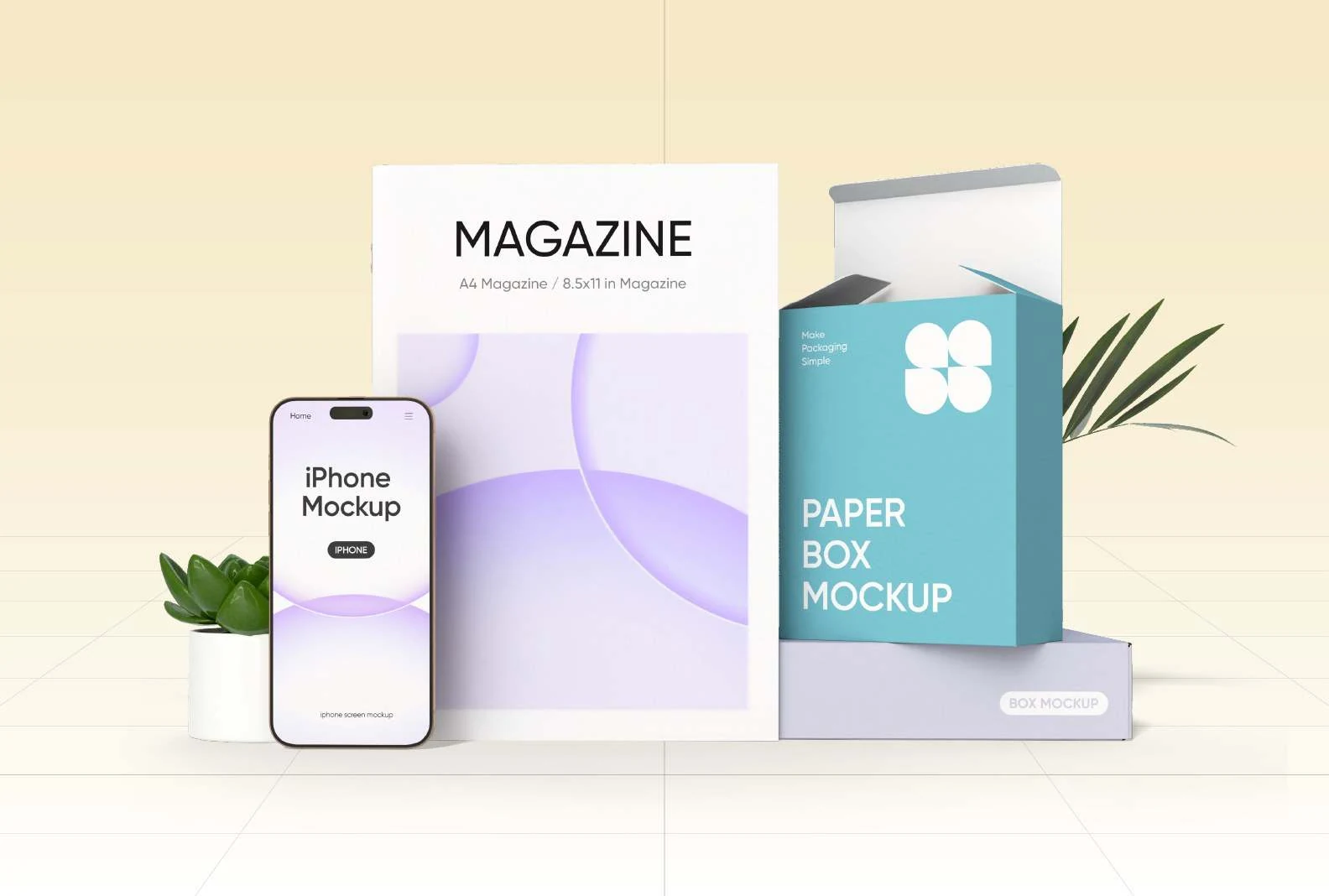
Start with a model, add elements and place everything exactly where you want it. Preview a new camera angle or lighting setup without starting over.
Create a sceneChoose CraftyWand products and combine them in one scene.
Explore six scene collections, then adjust the composition.
Move, rotate and scale objects, with layouts to get started.
Try lighting presets, change the angle and set the mood.
Orbit your scene and review the result as you work.
Render PNG or JPG images on your device at your chosen width.
Combine models and elements, apply scene templates and layouts, change backgrounds and lighting, position objects, adjust the camera, and render PNG or JPG images.
Use Save scene locally to keep a scene in this browser on this device. Restore scene reopens that local save. Cloud scene saving and cross-device access are not connected yet. Clearing browser data can remove locally saved work.
Sign in, open Models and choose Projects to add one of your saved designs with its artwork. Edit artwork in the existing 3D Studio, then reopen the saved design here to load its latest version.
Rendering runs on your device. Choose PNG or JPG and a 2K, 4K or 8K image width. Larger images and complex scenes need more graphics memory, so start at 2K if your device struggles.
You can browse this page on mobile. For building and rendering scenes, a desktop or laptop with a modern browser and WebGL support offers the best experience.
Build a product scene with CraftyWand.
Start 3D modeling